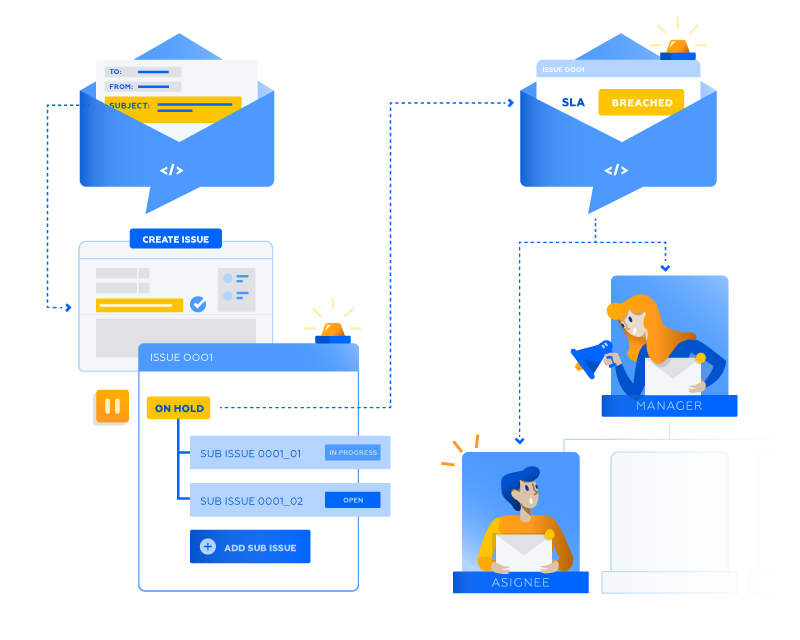
Maximise your team’s productivity with custom rules for Jira Software automation

It’s hard to imagine modern software—whether it’s email clients, CRMs, or even social media platforms—without at least some level of built-in automation. Tools like Zapier are also growing in popularity, enabling automation across third-party applications regardless of who built them.
But when it comes to Jira Software, you don’t need Zapier or similar platforms. Jira has its own powerful native automation system, and it’s one of the most commonly used features among teams looking to save time on repetitive and often tedious tasks.

Automation in Jira Software

Automation in Jira works like most modern automation systems: it’s based on predefined rules that perform actions based on specific triggers and conditions. Just like any other automation solution, Jira’s automation can help your team save time, reduce human error, and ensure smoother workflows. It’s often used to remove the need for manual intervention in tasks like assigning issues, sending notifications, or updating statuses automatically.

No coding required

One of the biggest advantages of Jira automation is that no coding skills are needed. With a simple no-code rule builder, anyone can create automation rules by choosing from a wide selection of templates and configuring them in just a few clicks. This makes the feature accessible to all team members—regardless of technical background.

Where to start?

To get started, navigate to “Project settings” in your Jira project and select “Automation”.
Here, you can create and manage your automation rules.
Each rule consists of three main components:

  • Triggers (events that start the rule)

  • Conditions (criteria that must be met)

  • Actions (tasks that are executed once conditions are met)

Example: Creating a simple automation rule

  • Trigger: When an issue is created

  • Condition: If the issue type is “Bug”

  • Action: Assign the issue to the “QA team”

How Jira automation looks in practice

Scenario 1: Automatically assigning issues

Automatically assign issues to team members based on specific criteria, such as issue type or project component.

Steps:

  1. Create a new rule

  2. Set the trigger to “Issue created”

  3. Add a condition to check the issue type

  4. Define an action to assign the issue to a specific user

Jira Automatizacija - postavljanje pravila
Scenari0 1

Scenario 2: Automatically updating issue status

Automatically change the status of issues based on certain conditions—for example, when a sub-task is completed.

Steps:

  • Trigger: Issue transitioned to “Done”

  • Condition: Check if the issue type is “Sub-task”

  • Action: Update the parent issue’s status to “In Progress”


Jira automatizacija - automatsko ažuriranje statusa
Scenario 2

Scenario 3: Sending notifications

Keep stakeholders informed by sending automated notifications for key events.

Steps:

  • Trigger: Issue transitioned to status “Done”

  • Action: Send an email notification to stakeholders


Jira automatizacija - automatsko slanje obavijesti
Scenario 3


Using smart values for dynamic automation

For more complex Jira automations, we use smart values, which make your automation rules more dynamic and flexible. These are essentially variables that can dynamically access and manipulate data within your Jira issues. They can be used to pull specific information such as the reporter’s name, issue summary, or custom field values, and integrate this data into actions like notifications, comments, and more.

The role of smart values in advanced automations

Smart values greatly enhance the potential of Jira automation by enabling the creation of personalised and context-aware rules.
For example, using {{issue.reporter.displayName}} will insert the reporter’s name into a notification, making the message more specific and relevant to the person who raised the issue.

Example:

Automate a comment on an issue when it transitions to “In Progress”:

  • Trigger: Issue transitioned to status “In Progress”

  • Action: Add comment:
    “Hi {{issue.reporter.displayName}}, your issue is now in progress.”


Jira automatizacija - primjer dodavanja komentara
Example of adding comments

Integration with other Atlassian and third-party tools

Integrating Jira automation with other Atlassian products and third-party tools like Slack, Microsoft Teams, Confluence, and others can significantly enhance your workflows, boost efficiency, and relieve your team from repetitive tasks—allowing them to focus on more complex work. Here’s how it works in practice:

Example: Integration with Slack

One of the most common examples is integrating Jira with Slack. This allows you to automatically send notifications to Slack channels when updates occur in Jira issues. Here’s how to set it up:

Creating a rule in Jira:

  • Trigger: Define the trigger that will activate the rule. For example, when an issue is updated.

  • Condition: Optionally, add a condition—for instance, check if the issue status has changed to “In Progress”.

  • Action: Add an action to send a notification to Slack. This is done using a Slack webhook URL linked to the channel where you want the message to be posted.

Setting up the webhook in Slack:

  1. Go to your Slack workspace settings and create a new incoming webhook.

  2. Copy the webhook URL, which will be used in your Jira rule.

Configuring the rule:

In the Jira rule’s action step, choose the option to send an HTTP request.
Enter the Slack webhook URL and configure the message body. For example:

https://hooks.slack.com/services/T00000000/B00000000/XXXXXXXXXXXXXXXXXXXXXXXX

json
{
"text": "Issue {{issue.key}} has been updated. New status: {{issue.status.name}}."
}

Save the rule and test it to ensure everything is working correctly.

Jira automatizacija - automatsko slanje poruke na Slack
Automatic message sending to Slack

Benefits of integration

Improved communication: Automated Slack notifications ensure the team is instantly informed about changes, reducing delays and increasing transparency.

Centralised information: Integration helps centralise key information on a single platform, making it easier to track tasks and their status without constantly switching between tools.

Increased productivity: Reducing manual data entry and enabling automatic notifications saves time and allows teams to focus on more important tasks.

Security and compliance

Ensuring security and compliance when using Jira automation is essential for protecting sensitive data and maintaining system integrity. Here’s how to achieve it:

Access management

It’s important to ensure that only authorised users can create and manage automation rules. This is done by setting the correct permissions and managing access within the Jira system. Maintaining the appropriate level of access helps safeguard sensitive data and maintain the integrity of your workflows.

Setting permissions:

  • In your Jira system, go to the administration settings

  • Navigate to the User management section

  • Assign specific permissions to users or groups that need access to create and manage automations

For example, only project administrators or global administrators should have permission to manage automation rules.

Upravljanje korisnicima u Jira Softwareu
User management


Dodavanje korisnika u Jira Softwareu
Adding a user
  1. Creating specific roles

    Create dedicated roles within Jira that come with clearly defined permissions.
    Assign these roles to users so they only have access to the functionalities necessary for their work—without unnecessary access to sensitive areas of the system.

Dodjeljivanje uloge korisniku u Jira Softwareu
Assigning a role to a user
  1. Regular permission reviews

    Regularly review and update permissions to ensure that only necessary users have access.
    Remove access for users who are no longer part of the project or team to reduce security risks.

    Key tips for automation

    Design efficient rules: Make sure your rules address specific needs without overlapping.

    Test before implementation: Validate rules in a test environment to avoid disruptions.

    Maintain your rules: Regularly review and update rules to keep them relevant.

    Automation = better organisation and more time

    Automation in Jira is an extremely useful way to improve your project management workflows.
    By starting with simple rules and gradually exploring more advanced scenarios, you can achieve significant improvements in your team’s productivity.

    The fact that no coding knowledge is required makes Jira automation accessible to everyone in your organisation, enabling anyone to create effective rules and outcomes with ease.

    Whether you’re assigning tasks automatically, updating statuses, or sending notifications, Jira provides the tools and flexibility needed for efficient automation—helping your team stay more organised and giving them more time to focus on complex tasks.